
Showing posts with label JavaScript. Show all posts
Showing posts with label JavaScript. Show all posts
Saturday, January 5, 2019
How to Add Google Translator Button on Your Webpage ?
January 05, 2019
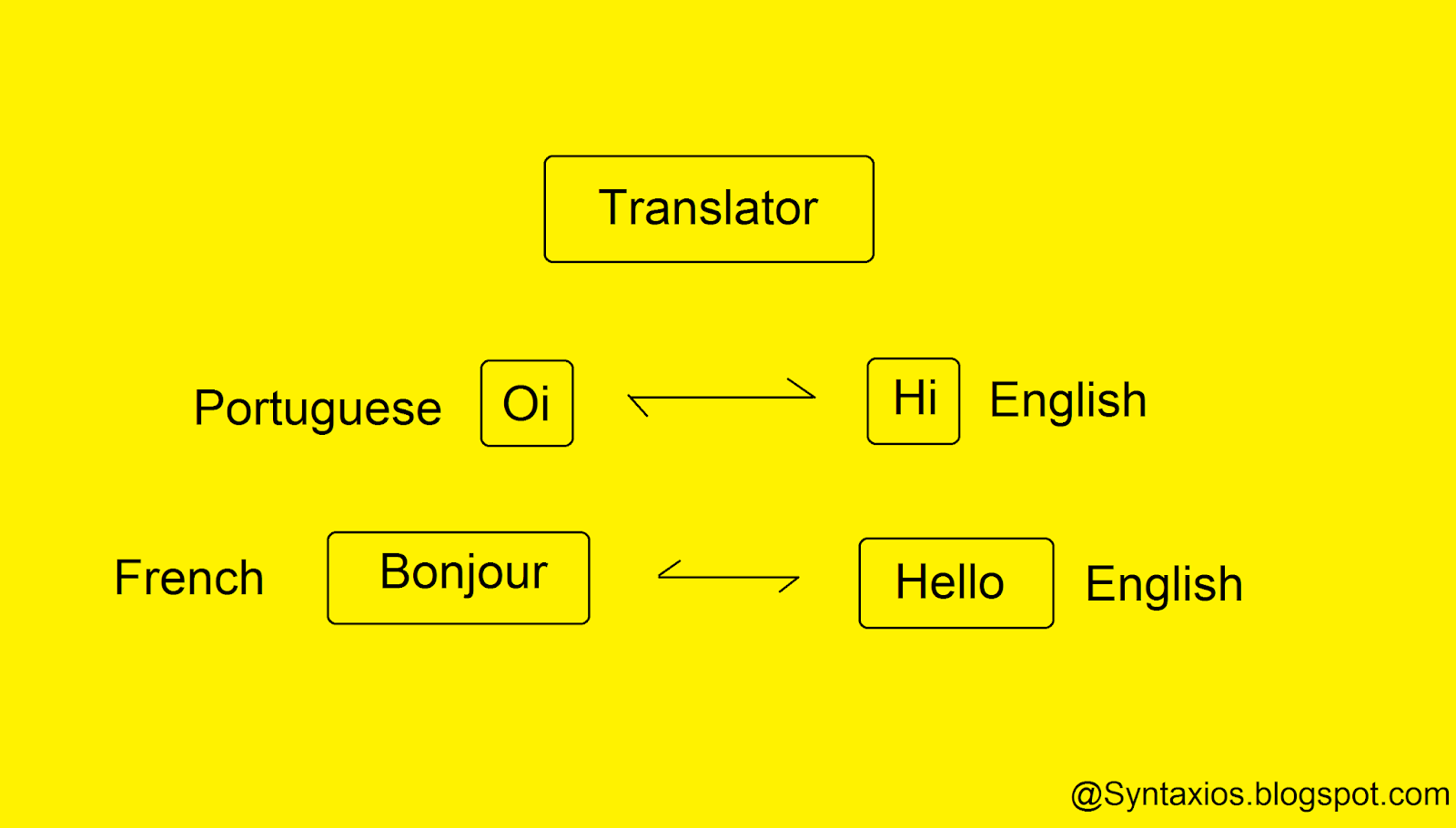
Suppose we are from India and we are trying to access some useful information that is very important for us and at that time we find that information in a website, But the problem is that this website is a french website in french language, So we are from India we can not understand French So we have to translate this website into our mother tongue that is Hindi, We can do that using Google Translator.
So Let's See
How to Use Google Translator On Our Website ?
Basically you have to follow the basic Three Step's to add a google translator on your webpage, Let's See these basic steps.
Step : 1 - Create a basic webpage and add a " div " element which we create later.
<div id="google_translator"> </div>
Step : 2 - In this step you have to add a google translator API.
<script type="text/javascript" src="//translate.google.com/translate_a/element.js?cb=googleTranslateElementInit"></script>
Step : 3 - In this last step we will add a JavaScript function.
<script type="text/javascript">
function googleTranslateElementInit(){
new google.translate.TranslateElement({pageLanguage: 'en'},'google_translator');
}
</script>
function googleTranslateElementInit(){
new google.translate.TranslateElement({pageLanguage: 'en'},'google_translator');
}
</script>
If you face any kind of problem in above steps please check the Example code to find the error in your code.
Example Code
<!DOCTYPE html>
<html>
<body>
<h1>Welcome to Syntaxios, Spread the love among Programmers.</h1>
<h3>Translate this Webpage in your preferred language.</h3>
<div id="google_translator"> <div>
<script type="text/javascript">
function googleTranslateElementInit(){
new google.translate.TranslateElement({pageLanguage: 'en'},'google_translator');
}
</script>
<script type="text/javascript" src="//translate.google.com/translate_a/element.js?cb=googleTranslateElementInit"></script>
<p>you can translate this content in your preferred language, Select your preferred language.</p>
</body>
</html>
<html>
<body>
<h1>Welcome to Syntaxios, Spread the love among Programmers.</h1>
<h3>Translate this Webpage in your preferred language.</h3>
<div id="google_translator"> <div>
<script type="text/javascript">
function googleTranslateElementInit(){
new google.translate.TranslateElement({pageLanguage: 'en'},'google_translator');
}
</script>
<script type="text/javascript" src="//translate.google.com/translate_a/element.js?cb=googleTranslateElementInit"></script>
<p>you can translate this content in your preferred language, Select your preferred language.</p>
</body>
</html>
At Last Thanks for Reading...
If you have any doubt don't forget to leave comment in comment box.
Thursday, January 3, 2019
JavaScript's window.history object
January 03, 2019

As we all know JavaScript is most popular programming or scripting language among programmers, without JavaScript you can't develop a creative website, But if you want to develop such a creative website then you must have some basic knowledge about JavaScript like methods in JavaScript, keywords in JavaScript & JavaScript function, one of them i am gonna tell you in this post, So Let's See.
Here in this post we talk about JavaScript's window.history object, This object will contain browser history and It also contains an array of URL's visited by the user, You can also count the length of the URL visited by the user using length property of window.history object. So Lets See.
Every Website developer should have basic knowledge of JavaScript, Because without JavaScript you can't imagine validation in your website or without validations your website like a man without head, So if you don't wanna look like this so please use JavaScript for validation in your website.
window.history object's Methods :
window.history.go().
window.history.back().
window.history.forward().
Note : You can also use only history object instead of window.history object It alone works fine, Because window part can be removed from window.history, If history object does't work alone then you should try window.history object.
window.history.go() - : This method will loads the given page number, The history.go(distance) function works as same as back and forward button and the one another thing is it also specify the exact page which you want to load.
<!DOCTYPE html>
<html>
<body>
<button onclick="goFunction()">Go To Selected Page</button>
<script>
function goFunction(){
window.history.go(3);
}
</script>
</body>
</html>
<html>
<body>
<button onclick="goFunction()">Go To Selected Page</button>
<script>
function goFunction(){
window.history.go(3);
}
</script>
</body>
</html>
Note : The window.history.go(3) will not works when next 3 page does not exist in history list, This go function works as same as you press forward button 3 times.
window.history.back() - : This method will loads the previous page as same as clicking on the back button of browser.
<!DOCTYPE html>
<html>
<body>
<button onclick="backFunction()">Go Back</button>
<script>
function backFunction(){
window.history.back();
}
</script>
</body>
</html>
<html>
<body>
<button onclick="backFunction()">Go Back</button>
<script>
function backFunction(){
window.history.back();
}
</script>
</body>
</html>
Note : This window.history.back() function will not work if previous page does not exist in the history list. When you click on the Go Back button this button will redirect you on the previous page.
window.history.forward() - : This history.forward method will loads the next page as same as forward button of browser.
<!DOCTYPE html>
<html>
<body>
<button onclick="forwardFunction()">Next Page</button>
<script>
function forwardFunction(){
window.history.forward();
}
</script>
</body>
</html>
<html>
<body>
<button onclick="forwardFunction()">Next Page</button>
<script>
function forwardFunction(){
window.history.forward();
}
</script>
</body>
</html>
Note : This window.history.forward() function will not work, If the next page does not exist in the history list, When you click on the Next Page button this button will open a next page. Both function exactly work same as our browser's back and forward button works.
Monday, October 8, 2018
How to Add Auto Complete and Suggestion Feature in Your Website Using jQuery
October 08, 2018

Both part did same thing but there is little difference between them, The JavaScript part will gives the faster result than jQuery part, I wrote this post because i got many emails about first post, Most of the people request me to write same post in jQuery, because some of them don't know JavaScript they know only jQuery.
So If you have same problem like they all have so read this post carefully, and If you have any question regarding any post please contact us i will try to reply you all as soon as possible, For Now Let's add auto complete and suggestion feature in your website using jQuery.
So Let's Begin,
Using jQuery :
jQuery has an inbuilt autocomplete function which takes is and a list of available tags, jQuery method is little bit slower than JavaScript method, If you want faster code than I recommend you to read Add Auto Complete and Suggestion Feature Using JavaScript.
Note : First of all please don't forget to add jQuery library carefully. and All the library should be downloaded in your computer.
Code :
<!DOCTYPE html>
<html>
<head>
<meta charset="utf-8">
<meta name="viewport" content="width=device-width,initial-scale=1">
<title>Auto Complete and Suggestion Feature Using jQuery</title>
<link rel="stylesheet" href="//code.jquery.com/ui/1.12.1/themes/base/jquery-ui.css">
<link rel="stylesheet" href="/resources/demos/style.css">
<script src="https//code.jquery.com/jquery-1.12.4.js"></script>
<script src="https//code.jquery.com/ui/1.12.1/jquery-ui.js"></script>
</head>
<body>
<script>
$(document).ready(function(){
var tags = [
"Gwalior",
"Indore",
"Punjab",
"Haryana",
"Delhi",
"Madhya Pradesh",
"Rajasthan",
"Ujjain",
"Shivpuri",
"Bhind",
"Dholpur"
];
//options
$("#tags").autocomplete({
source:tags //list of available tags
});
});
</script>
<div class="ui-widget">
<h1>Hello World,</h1>
<h2>Enter any alphabets for Auto Complete and Suggestion...</h2>
<input id="tags">
</div>
</body>
</html>
<html>
<head>
<meta charset="utf-8">
<meta name="viewport" content="width=device-width,initial-scale=1">
<title>Auto Complete and Suggestion Feature Using jQuery</title>
<link rel="stylesheet" href="//code.jquery.com/ui/1.12.1/themes/base/jquery-ui.css">
<link rel="stylesheet" href="/resources/demos/style.css">
<script src="https//code.jquery.com/jquery-1.12.4.js"></script>
<script src="https//code.jquery.com/ui/1.12.1/jquery-ui.js"></script>
</head>
<body>
<script>
$(document).ready(function(){
var tags = [
"Gwalior",
"Indore",
"Punjab",
"Haryana",
"Delhi",
"Madhya Pradesh",
"Rajasthan",
"Ujjain",
"Shivpuri",
"Bhind",
"Dholpur"
];
//options
$("#tags").autocomplete({
source:tags //list of available tags
});
});
</script>
<div class="ui-widget">
<h1>Hello World,</h1>
<h2>Enter any alphabets for Auto Complete and Suggestion...</h2>
<input id="tags">
</div>
</body>
</html>
Output :

Add Auto Complete and Suggestion Feature in Your Website Using JavaScript
October 08, 2018

If you want to add this feature who work something like When Someone start typing something in your websites address bar your website will Automatically Completed it and start Suggesting keyword related to your searched keyword.
If YES than this post gonna help you to add Auto Complete and Suggestion feature in your website, There are many ways to add auto complete or suggestion feature in your website using JavaScript, Basically There two ways to add auto complete and suggestion feature in your website, The First one is using JavaScript that is above mentioned and another type is using Frameworks that is jQuery, But I am gonna tell you this using JavaScript very simple, very small & very easy way, That you can understand easily.
If you don't know advance JavaScript don't worry about it, I you know only basics of JavaScript it's ok, Because I am gonna tell you in very simple, small and easy way using basic concept of JavaScript, So let's start learning something new.
So Let's Begin,
Using JavaScript :
JavaScript method will show result faster than Frameworks method.
<!DOCTYPE html>
<html>
<head>
<title>Auto Complete & Suggestion Feature using JavaScript</title>
</head>
<body>
<script type="text/javascript">
var tags = [
"Gwalior",
"Indore",
"Punjab",
"Haryana",
"Delhi",
"Madhya Pradesh",
"Rajasthan",
"Ujjain",
"Shivpuri",
"Bhind",
"Dholpur"
];
//options
var n = tags.length; //n= number of tags
function AutoComplete(value){
document.getElementById('datalist').innerHTML =";
/* setting tagslist empty, If you skip this step, same name will be repeated. */
l = value.length; // input query length
for( var i=0; i<n; i++){
if(((tags[i].toLowerCase()).indexOf(value.toLowerCase()))>-1){
//comparing if input string is alredy existing in tags[i] string
var node = document.createElement("option");
var val = document.createTextNode(tags[i]);
node.appendChild(val);
document.getElementById("datalist").appendChild(node);
//create and append new element in 'datalist'
}
}
}
</script>
<body>
<input type="text" list="datalist" onkeyup="AutoComplete(this.value)">
<!--onkeyup calls the AutoComplete function everytime when key is released.-->
<datalist id="datalist">
<option value="Delhi"></option>
<option value="Haryana"></option>
<option value="Punjab"></option>
<option value="Rajasthan"></option>
<option value="Indore"></option>
<option value="Gwalior"></option>
<option value="Bhind"></option>
<option value="Dholpur"></option>
<option value="Shivpuri"></option>
<option value="Ujjain"></option>
<option value="Madhya Pradesh"></option>
</datalist>
<!--This tagslist will be edited through JavaScript-->
</body>
</html>
<html>
<head>
<title>Auto Complete & Suggestion Feature using JavaScript</title>
</head>
<body>
<script type="text/javascript">
var tags = [
"Gwalior",
"Indore",
"Punjab",
"Haryana",
"Delhi",
"Madhya Pradesh",
"Rajasthan",
"Ujjain",
"Shivpuri",
"Bhind",
"Dholpur"
];
//options
var n = tags.length; //n= number of tags
function AutoComplete(value){
document.getElementById('datalist').innerHTML =";
/* setting tagslist empty, If you skip this step, same name will be repeated. */
l = value.length; // input query length
for( var i=0; i<n; i++){
if(((tags[i].toLowerCase()).indexOf(value.toLowerCase()))>-1){
//comparing if input string is alredy existing in tags[i] string
var node = document.createElement("option");
var val = document.createTextNode(tags[i]);
node.appendChild(val);
document.getElementById("datalist").appendChild(node);
//create and append new element in 'datalist'
}
}
}
</script>
<body>
<input type="text" list="datalist" onkeyup="AutoComplete(this.value)">
<!--onkeyup calls the AutoComplete function everytime when key is released.-->
<datalist id="datalist">
<option value="Delhi"></option>
<option value="Haryana"></option>
<option value="Punjab"></option>
<option value="Rajasthan"></option>
<option value="Indore"></option>
<option value="Gwalior"></option>
<option value="Bhind"></option>
<option value="Dholpur"></option>
<option value="Shivpuri"></option>
<option value="Ujjain"></option>
<option value="Madhya Pradesh"></option>
</datalist>
<!--This tagslist will be edited through JavaScript-->
</body>
</html>
Output :

Saturday, October 6, 2018
Use These JavaScript Dialogue Boxes to Make Such a Creative Website
October 06, 2018

If you have same dream like what i am talking about than read this post carefully, This post will help you to make such a creative website who can attract more visiters.
These JavaScript Dialogue Boxes will help you to make a very simple and creative website, That is user friendly, simple & creative.
There are three type of Dialogue Boxes in JavaScript who will help you to make a creative website, These JavaScript Dialogue Boxes are Confirm Box, Alert Box & the last one is Prompt Box.
Confirm Box :
The Confirm Box is used to verify or to accept something that you want to accept by the user, Like accept Terms and Conditions, any kind of checkmark, and to verify something to, Like would you like to continue etc.
When Confirm Box pop up's It has only two button the first one is Ok, and the second or last one is Cancel button, If you click on Ok it means you proceed to next activity and the window method confirm() will return true, and if the User click on Cancel button that means used does not want to proceed next activity and the window method confirm() will return false & show null, So Let's Understand this Confirm Dialogue Box by an Example.
Confirm Box Example :
<!DOCTYPE html>
<html>
<head>
<title>Confirm Dialogue Box</title>
<script type="text/javascript">
function ConfirmBox(){
var Val = confirm("Do you want to continue ? / Press Ok to continue");
if( Val == true){
document.write("You Press 'Ok'");
}
else{
document.write("You Press 'Cancel'");
return false;
}
}
</script>
</head>
<body>
<p>Click On Confirm Dialogue Box...</p>
<form>
<input type="button" value="Confirm Dialogue Box" onclick="ConfirmBox();" />
</form>
</body>
</html>
<html>
<head>
<title>Confirm Dialogue Box</title>
<script type="text/javascript">
function ConfirmBox(){
var Val = confirm("Do you want to continue ? / Press Ok to continue");
if( Val == true){
document.write("You Press 'Ok'");
}
else{
document.write("You Press 'Cancel'");
return false;
}
}
</script>
</head>
<body>
<p>Click On Confirm Dialogue Box...</p>
<form>
<input type="button" value="Confirm Dialogue Box" onclick="ConfirmBox();" />
</form>
</body>
</html>
Alert Box :
In JavaScript the another type of Dialogue Box is Alert Box, This Alert Box is used to show Warning Message to the users, Like Password Confirmation, any special input values etc, for if user enter the wrong value other than a required value that is input mismatch.
These Alert Boxes are mostly used in input form like Registration form, in Registration form the form require different type of input value but the user enter different type of value, Than we use Alert Box to show Warning Message to the user, So now let's understand this Alert Box by using an Example.
Alert Box Example :
<!DOCTYPE html>
<html>
<head>
<title>Alert Box</title>
<script type="text/javascript">
function AlertBox(){
alert("You did not fill all the require * fields...")
document.write("Please fill the all require * fields...");
}
</script>
</head>
<body>
<p>Click Here On Alert Box Button...</p>
<form>
<input type="button" value="Alert Box" onclick="AlertBox();" />
</form>
</body>
</html>
<html>
<head>
<title>Alert Box</title>
<script type="text/javascript">
function AlertBox(){
alert("You did not fill all the require * fields...")
document.write("Please fill the all require * fields...");
}
</script>
</head>
<body>
<p>Click Here On Alert Box Button...</p>
<form>
<input type="button" value="Alert Box" onclick="AlertBox();" />
</form>
</body>
</html>
Prompt Box :
The Prompt Dialogue Box is used when you require some input value on page loading time, Like if you want to show any greeting message to the users.
The Prompt Box have also two buttons that is 'Ok' and 'Cancel' button, When we show the greeting message to the user and than user enter some value and than click 'Ok' button than the javascript function will show the the users entered value, If the user click on the 'Cancel' button the JavaScript function will return null this will show you a null value, So now It's time to implement Prompt Box Example Lets see a example of Prompt Box.
Prompt Box Example :
<!DOCTYPE html>
<html>
<head>
<title>Prompt Box</title>
<script type="text/javascript">
function PromptBox(){
var Name = prompt("Enter Your Name :");
document.write("Hello "+Name);
}
</script>
</head>
<body>
<p>Click Here On Prompt Box Button...</p>
<form>
<input type="button" value="Prompt Box" onclick="PromptBox();" />
</form>
</body>
</html>
<html>
<head>
<title>Prompt Box</title>
<script type="text/javascript">
function PromptBox(){
var Name = prompt("Enter Your Name :");
document.write("Hello "+Name);
}
</script>
</head>
<body>
<p>Click Here On Prompt Box Button...</p>
<form>
<input type="button" value="Prompt Box" onclick="PromptBox();" />
</form>
</body>
</html>
If You have any question related to this post please contact us or leave a comment in a Comment Box we will try to reply you soon...
Monday, August 6, 2018
How to Show And Hide Password Using JavaScript ?
August 06, 2018
How to show and hide Password using JavaScript ? Here we talk about your login or signup form, How to build a best user input form ?, Lets Begin...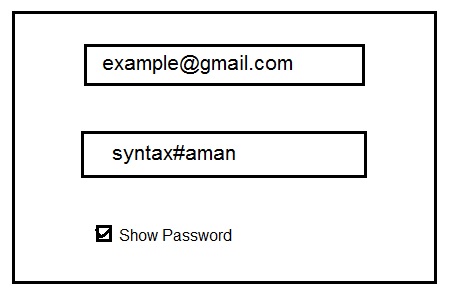 Every website have login and signup form, These login and signup form contains many fields like First Name, Last Name, Email, Phone and Password etc. These fields are require to fill by the user, User must have to fill Email and Password field.
Sometimes user can enter wrong password and He/She hit the Enter key with his or her wrong password because the user can not see there entered password because of your input type="password" property (Like this *********), So user can not login or signup because of wrong password that he or she entered, So the user be a little bit disappointed.
If you want to provide best user experience for your users you have to add show and hide button into the password field of your login or signup form.
So here i am gonna teach you how you can add password show and hide button into the password field of your login or signup form.
So Let's See...
Need :
Actual Form :
Email :
Name :
Show Password
HTML :
JavaScript :
 Every website have login and signup form, These login and signup form contains many fields like First Name, Last Name, Email, Phone and Password etc. These fields are require to fill by the user, User must have to fill Email and Password field.
Sometimes user can enter wrong password and He/She hit the Enter key with his or her wrong password because the user can not see there entered password because of your input type="password" property (Like this *********), So user can not login or signup because of wrong password that he or she entered, So the user be a little bit disappointed.
If you want to provide best user experience for your users you have to add show and hide button into the password field of your login or signup form.
So here i am gonna teach you how you can add password show and hide button into the password field of your login or signup form.
So Let's See...
Need :
- First of all you have create a HTML form that contains all the input fields like First Name, Last Name, Email, Phone and Password for Signup form, Or Email or Password for Login Form.
- Create a checkbox for show and hide password.
- Create a JavaScript function that will generate your wishing output. When the user checked the checkbox than the user can see his/her password like this (Before : ***********), (After click Checked : syntax#aman).
Actual Form :
Email :
Name :
Wishing for :Name :
Email :
Name :
Show Password
HTML :
<!DOCTYPE html>
<html>
<body>
<h3>Click the checkbox to Hide or Show the Password....</h3>
<input type = "password" value = "syntax#aman" id = "passtype" >
<input type="checkbox" onclick = "changePassword()">
<b>Show Password</b>
</body>
</html>
<html>
<body>
<h3>Click the checkbox to Hide or Show the Password....</h3>
<input type = "password" value = "syntax#aman" id = "passtype" >
<input type="checkbox" onclick = "changePassword()">
<b>Show Password</b>
</body>
</html>
JavaScript :
<script>
function changePassword(){
var temp = document.getElementById("passtype");
if(temp.type = = = "password"){
temp.type = "text";
}
else{
temp.type = "password";
}
}
</script>
function changePassword(){
var temp = document.getElementById("passtype");
if(temp.type = = = "password"){
temp.type = "text";
}
else{
temp.type = "password";
}
}
</script>
Complete Code :
<!DOCTYPE html>
<html>
<body>
<h3>Click the checkbox to Hide or Show the Password....</h3>
<input type = "password" value = "syntax#aman" id = "passtype" >
<input type="checkbox" onclick = "changePassword()">
<b>Show Password</b>
<script>
function changePassword(){
var temp = document.getElementById("passtype");
if(temp.type === "password"){
temp.type = "text";
}
else{
temp.type = "password";
}
}
</script>
</body>
</html>
Thanks for Reading...<html>
<body>
<h3>Click the checkbox to Hide or Show the Password....</h3>
<input type = "password" value = "syntax#aman" id = "passtype" >
<input type="checkbox" onclick = "changePassword()">
<b>Show Password</b>
<script>
function changePassword(){
var temp = document.getElementById("passtype");
if(temp.type === "password"){
temp.type = "text";
}
else{
temp.type = "password";
}
}
</script>
</body>
</html>
Wednesday, August 1, 2018
How to Create a Progress Bar Using JavaScript ?
August 01, 2018
Hello World!,
This Hello World! will remind you something, What is it ? #Hahaha, This will remind you about your first program of your life. It sounds great, Lets make your programming journey full of adventures with JavaScript
In this post you will learn How to create a Progress Bar using JavaScript ?
 What is Progress Bar ?
Progress Bar is used to illustrate the progress of any kind of tasks like downloading progress, Installing progress, Uploading progress etc. Progress Bar will illustrate it graphically, It is also used to show the progress status like Download, Upload, Installation etc's status.
If you want to create a simple Progress Bar for your website, This post will help you to create a Progress Bar using JavaScript.
So Let's start
Follow the given steps for creating a Progress Bar, First of all you have to create a HTML page, This HTML page is a structure of your Progress Bar :
HTML :
CSS :
JavaScript :
This Hello World! will remind you something, What is it ? #Hahaha, This will remind you about your first program of your life. It sounds great, Lets make your programming journey full of adventures with JavaScript

Progress Bar is used to illustrate the progress of any kind of tasks like downloading progress, Installing progress, Uploading progress etc. Progress Bar will illustrate it graphically, It is also used to show the progress status like Download, Upload, Installation etc's status.
If you want to create a simple Progress Bar for your website, This post will help you to create a Progress Bar using JavaScript.
So Let's start
Follow the given steps for creating a Progress Bar, First of all you have to create a HTML page, This HTML page is a structure of your Progress Bar :
HTML :
<div id="Progress_Bar_Status">
<div id="Progress"></div>
</div>
NOTE : The html contains two div class called "Progress_Bar_Status" and "Progress_Bar",<div id="Progress"></div>
</div>
CSS :
<style>
#Progress_Bar_Status{
width: 70%;
background-color: #ddd;
}
#Progress{
width: 1%;
height: 40px;
background-color: blue;
text-align: center;
line-height: 45px;
}
</style>
NOTE : Here we add CSS for our Progress bar using css id.#Progress_Bar_Status{
width: 70%;
background-color: #ddd;
}
#Progress{
width: 1%;
height: 40px;
background-color: blue;
text-align: center;
line-height: 45px;
}
</style>
JavaScript :
<script>
function status(){
var element = document.getElementById("Progress");
var width = 1;
var identity = setInterval(scene, 10);
function scene(){
if(width >= 100){
clearInterval(identity);
} else{
width++;
element.style.width = width + % ;
}
}
}
</script>
function status(){
var element = document.getElementById("Progress");
var width = 1;
var identity = setInterval(scene, 10);
function scene(){
if(width >= 100){
clearInterval(identity);
} else{
width++;
element.style.width = width + % ;
}
}
}
</script>
Complete Code :
<!DOCTYPE html>
<html>
<head>
<style>
#Progress_Bar_Status{
width: 49%;
background-color: #ddd;
}
#Progress{
width: 2%;
height: 23px;
background-color: blue;
}
</style>
</head>
<body>
<h4>Your Progress Bar is now ready to use @HappyCodding</h4>
<h2>Downloading Status</h2>
<div id="Progress_Bar_Status">
<div id="Progress"></div>
</div>
var element = document.getElementById("Progress");
var width = 1;
var identity = setInterval(scene, 10);
function scene(){
if(width >= 100){
clearInterval(identity);
} else{
width++;
element.style.width = width + '%' ;
}
}
}
</script>
</body>
</html>
<html>
<head>
<style>
#Progress_Bar_Status{
width: 49%;
background-color: #ddd;
}
#Progress{
width: 2%;
height: 23px;
background-color: blue;
}
</style>
</head>
<body>
<h4>Your Progress Bar is now ready to use @HappyCodding</h4>
<h2>Downloading Status</h2>
<div id="Progress_Bar_Status">
<div id="Progress"></div>
</div>
<br>
<button onclick="status()">Start Downloading</button>
<script>
function status(){var element = document.getElementById("Progress");
var width = 1;
var identity = setInterval(scene, 10);
function scene(){
if(width >= 100){
clearInterval(identity);
} else{
width++;
element.style.width = width + '%' ;
}
}
}
</script>
</body>
</html>
Now your Progress Bar is ready, But you can make better than this Progress Bar by using your creativity, You can put your creative brain with your programming skill to make a better progress bar.
Percentage ( % ) Progress Bar :
You can create a another type of progress bar that is percentage progress bar, This progress bar will show you the progress status in the from of percentage,Let's see
Code :
<!DOCTYPE html>
<html>
<head>
<style>
#Progress_Bar_Status{
width: 49%;
background-color: #ddd;
}
#Progress{
width: 1%;
height: 35px;
background-color: blue;
text-align: center;
line-height: 33px;
color: black;
}
</style>
</head>
<body>
<h4>Your Progress Bar is now ready to use @HappyCodding</h4>
<h2>Downloading Status</h2>
<div id="Progress_Bar_Status">
<div id="Progress">1%</div>
</div>
var element = document.getElementById("Progress");
var width = 1;
var identity = setInterval(scene, 10);
function scene(){
if(width >= 100){
clearInterval(identity);
} else{
width++;
element.style.width = width + '%' ;
element.innerHTML = width * 1 + '%' ;
}
}
}
</script>
</body>
</html>
<html>
<head>
<style>
#Progress_Bar_Status{
width: 49%;
background-color: #ddd;
}
#Progress{
width: 1%;
height: 35px;
background-color: blue;
text-align: center;
line-height: 33px;
color: black;
}
</style>
</head>
<body>
<h4>Your Progress Bar is now ready to use @HappyCodding</h4>
<h2>Downloading Status</h2>
<div id="Progress_Bar_Status">
<div id="Progress">1%</div>
</div>
<br>
<button onclick="status()">Start Downloading</button>
<script>
function status(){var element = document.getElementById("Progress");
var width = 1;
var identity = setInterval(scene, 10);
function scene(){
if(width >= 100){
clearInterval(identity);
} else{
width++;
element.style.width = width + '%' ;
element.innerHTML = width * 1 + '%' ;
}
}
}
</script>
</body>
</html>
Subscribe to:
Posts (Atom)


