
Showing posts with label JavaScript Tutorial. Show all posts
Showing posts with label JavaScript Tutorial. Show all posts
Saturday, January 5, 2019
How to Add Google Translator Button on Your Webpage ?
January 05, 2019
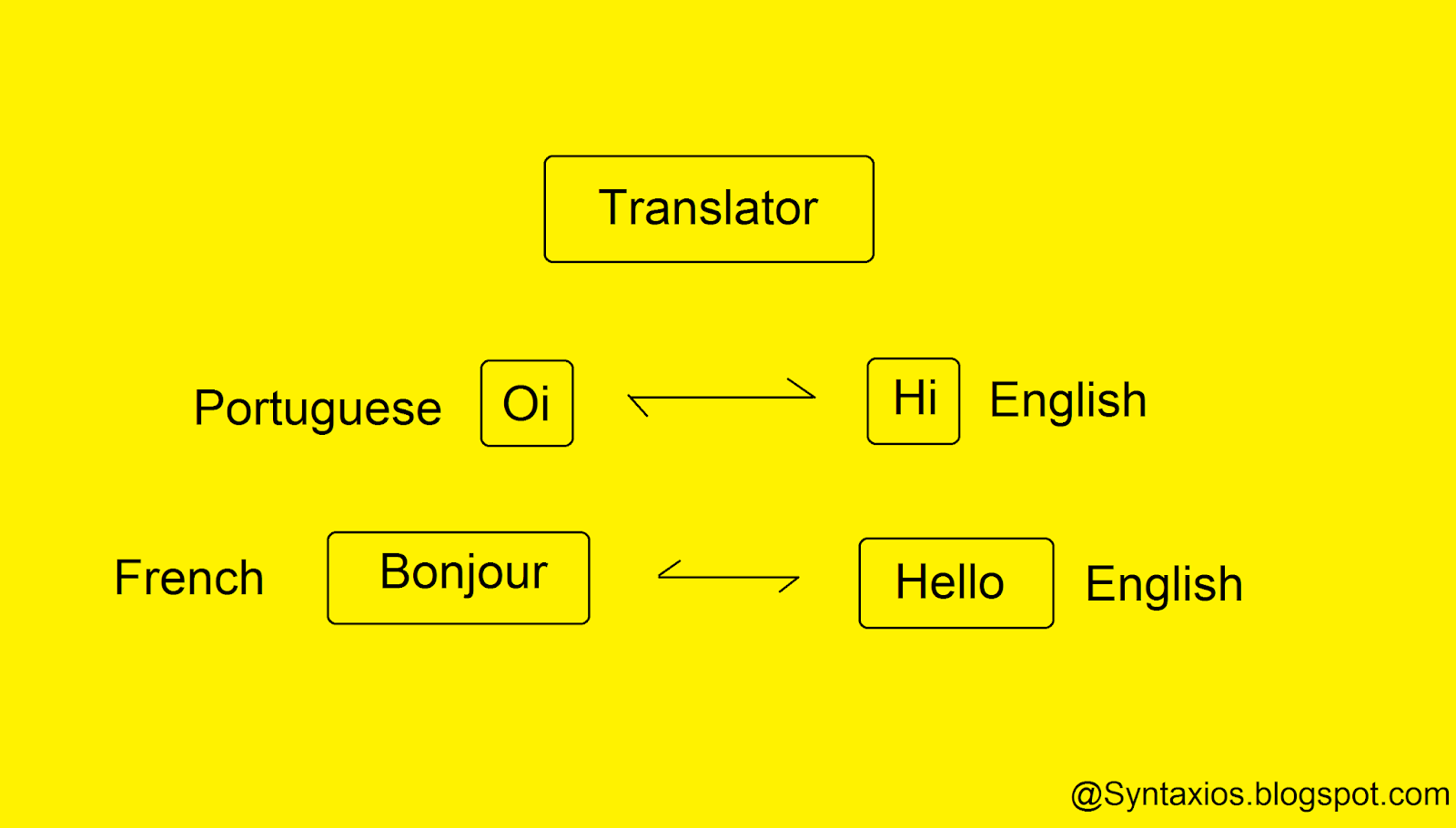
Suppose we are from India and we are trying to access some useful information that is very important for us and at that time we find that information in a website, But the problem is that this website is a french website in french language, So we are from India we can not understand French So we have to translate this website into our mother tongue that is Hindi, We can do that using Google Translator.
So Let's See
How to Use Google Translator On Our Website ?
Basically you have to follow the basic Three Step's to add a google translator on your webpage, Let's See these basic steps.
Step : 1 - Create a basic webpage and add a " div " element which we create later.
<div id="google_translator"> </div>
Step : 2 - In this step you have to add a google translator API.
<script type="text/javascript" src="//translate.google.com/translate_a/element.js?cb=googleTranslateElementInit"></script>
Step : 3 - In this last step we will add a JavaScript function.
<script type="text/javascript">
function googleTranslateElementInit(){
new google.translate.TranslateElement({pageLanguage: 'en'},'google_translator');
}
</script>
function googleTranslateElementInit(){
new google.translate.TranslateElement({pageLanguage: 'en'},'google_translator');
}
</script>
If you face any kind of problem in above steps please check the Example code to find the error in your code.
Example Code
<!DOCTYPE html>
<html>
<body>
<h1>Welcome to Syntaxios, Spread the love among Programmers.</h1>
<h3>Translate this Webpage in your preferred language.</h3>
<div id="google_translator"> <div>
<script type="text/javascript">
function googleTranslateElementInit(){
new google.translate.TranslateElement({pageLanguage: 'en'},'google_translator');
}
</script>
<script type="text/javascript" src="//translate.google.com/translate_a/element.js?cb=googleTranslateElementInit"></script>
<p>you can translate this content in your preferred language, Select your preferred language.</p>
</body>
</html>
<html>
<body>
<h1>Welcome to Syntaxios, Spread the love among Programmers.</h1>
<h3>Translate this Webpage in your preferred language.</h3>
<div id="google_translator"> <div>
<script type="text/javascript">
function googleTranslateElementInit(){
new google.translate.TranslateElement({pageLanguage: 'en'},'google_translator');
}
</script>
<script type="text/javascript" src="//translate.google.com/translate_a/element.js?cb=googleTranslateElementInit"></script>
<p>you can translate this content in your preferred language, Select your preferred language.</p>
</body>
</html>
At Last Thanks for Reading...
If you have any doubt don't forget to leave comment in comment box.
Thursday, January 3, 2019
JavaScript's window.history object
January 03, 2019

As we all know JavaScript is most popular programming or scripting language among programmers, without JavaScript you can't develop a creative website, But if you want to develop such a creative website then you must have some basic knowledge about JavaScript like methods in JavaScript, keywords in JavaScript & JavaScript function, one of them i am gonna tell you in this post, So Let's See.
Here in this post we talk about JavaScript's window.history object, This object will contain browser history and It also contains an array of URL's visited by the user, You can also count the length of the URL visited by the user using length property of window.history object. So Lets See.
Every Website developer should have basic knowledge of JavaScript, Because without JavaScript you can't imagine validation in your website or without validations your website like a man without head, So if you don't wanna look like this so please use JavaScript for validation in your website.
window.history object's Methods :
window.history.go().
window.history.back().
window.history.forward().
Note : You can also use only history object instead of window.history object It alone works fine, Because window part can be removed from window.history, If history object does't work alone then you should try window.history object.
window.history.go() - : This method will loads the given page number, The history.go(distance) function works as same as back and forward button and the one another thing is it also specify the exact page which you want to load.
<!DOCTYPE html>
<html>
<body>
<button onclick="goFunction()">Go To Selected Page</button>
<script>
function goFunction(){
window.history.go(3);
}
</script>
</body>
</html>
<html>
<body>
<button onclick="goFunction()">Go To Selected Page</button>
<script>
function goFunction(){
window.history.go(3);
}
</script>
</body>
</html>
Note : The window.history.go(3) will not works when next 3 page does not exist in history list, This go function works as same as you press forward button 3 times.
window.history.back() - : This method will loads the previous page as same as clicking on the back button of browser.
<!DOCTYPE html>
<html>
<body>
<button onclick="backFunction()">Go Back</button>
<script>
function backFunction(){
window.history.back();
}
</script>
</body>
</html>
<html>
<body>
<button onclick="backFunction()">Go Back</button>
<script>
function backFunction(){
window.history.back();
}
</script>
</body>
</html>
Note : This window.history.back() function will not work if previous page does not exist in the history list. When you click on the Go Back button this button will redirect you on the previous page.
window.history.forward() - : This history.forward method will loads the next page as same as forward button of browser.
<!DOCTYPE html>
<html>
<body>
<button onclick="forwardFunction()">Next Page</button>
<script>
function forwardFunction(){
window.history.forward();
}
</script>
</body>
</html>
<html>
<body>
<button onclick="forwardFunction()">Next Page</button>
<script>
function forwardFunction(){
window.history.forward();
}
</script>
</body>
</html>
Note : This window.history.forward() function will not work, If the next page does not exist in the history list, When you click on the Next Page button this button will open a next page. Both function exactly work same as our browser's back and forward button works.
Monday, August 6, 2018
How to Show And Hide Password Using JavaScript ?
August 06, 2018
How to show and hide Password using JavaScript ? Here we talk about your login or signup form, How to build a best user input form ?, Lets Begin...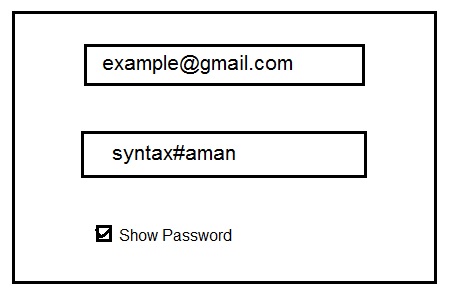 Every website have login and signup form, These login and signup form contains many fields like First Name, Last Name, Email, Phone and Password etc. These fields are require to fill by the user, User must have to fill Email and Password field.
Sometimes user can enter wrong password and He/She hit the Enter key with his or her wrong password because the user can not see there entered password because of your input type="password" property (Like this *********), So user can not login or signup because of wrong password that he or she entered, So the user be a little bit disappointed.
If you want to provide best user experience for your users you have to add show and hide button into the password field of your login or signup form.
So here i am gonna teach you how you can add password show and hide button into the password field of your login or signup form.
So Let's See...
Need :
Actual Form :
Email :
Name :
Show Password
HTML :
JavaScript :
 Every website have login and signup form, These login and signup form contains many fields like First Name, Last Name, Email, Phone and Password etc. These fields are require to fill by the user, User must have to fill Email and Password field.
Sometimes user can enter wrong password and He/She hit the Enter key with his or her wrong password because the user can not see there entered password because of your input type="password" property (Like this *********), So user can not login or signup because of wrong password that he or she entered, So the user be a little bit disappointed.
If you want to provide best user experience for your users you have to add show and hide button into the password field of your login or signup form.
So here i am gonna teach you how you can add password show and hide button into the password field of your login or signup form.
So Let's See...
Need :
- First of all you have create a HTML form that contains all the input fields like First Name, Last Name, Email, Phone and Password for Signup form, Or Email or Password for Login Form.
- Create a checkbox for show and hide password.
- Create a JavaScript function that will generate your wishing output. When the user checked the checkbox than the user can see his/her password like this (Before : ***********), (After click Checked : syntax#aman).
Actual Form :
Email :
Name :
Wishing for :Name :
Email :
Name :
Show Password
HTML :
<!DOCTYPE html>
<html>
<body>
<h3>Click the checkbox to Hide or Show the Password....</h3>
<input type = "password" value = "syntax#aman" id = "passtype" >
<input type="checkbox" onclick = "changePassword()">
<b>Show Password</b>
</body>
</html>
<html>
<body>
<h3>Click the checkbox to Hide or Show the Password....</h3>
<input type = "password" value = "syntax#aman" id = "passtype" >
<input type="checkbox" onclick = "changePassword()">
<b>Show Password</b>
</body>
</html>
JavaScript :
<script>
function changePassword(){
var temp = document.getElementById("passtype");
if(temp.type = = = "password"){
temp.type = "text";
}
else{
temp.type = "password";
}
}
</script>
function changePassword(){
var temp = document.getElementById("passtype");
if(temp.type = = = "password"){
temp.type = "text";
}
else{
temp.type = "password";
}
}
</script>
Complete Code :
<!DOCTYPE html>
<html>
<body>
<h3>Click the checkbox to Hide or Show the Password....</h3>
<input type = "password" value = "syntax#aman" id = "passtype" >
<input type="checkbox" onclick = "changePassword()">
<b>Show Password</b>
<script>
function changePassword(){
var temp = document.getElementById("passtype");
if(temp.type === "password"){
temp.type = "text";
}
else{
temp.type = "password";
}
}
</script>
</body>
</html>
Thanks for Reading...<html>
<body>
<h3>Click the checkbox to Hide or Show the Password....</h3>
<input type = "password" value = "syntax#aman" id = "passtype" >
<input type="checkbox" onclick = "changePassword()">
<b>Show Password</b>
<script>
function changePassword(){
var temp = document.getElementById("passtype");
if(temp.type === "password"){
temp.type = "text";
}
else{
temp.type = "password";
}
}
</script>
</body>
</html>
Wednesday, August 1, 2018
How to Create a Progress Bar Using JavaScript ?
August 01, 2018
Hello World!,
This Hello World! will remind you something, What is it ? #Hahaha, This will remind you about your first program of your life. It sounds great, Lets make your programming journey full of adventures with JavaScript
In this post you will learn How to create a Progress Bar using JavaScript ?
 What is Progress Bar ?
Progress Bar is used to illustrate the progress of any kind of tasks like downloading progress, Installing progress, Uploading progress etc. Progress Bar will illustrate it graphically, It is also used to show the progress status like Download, Upload, Installation etc's status.
If you want to create a simple Progress Bar for your website, This post will help you to create a Progress Bar using JavaScript.
So Let's start
Follow the given steps for creating a Progress Bar, First of all you have to create a HTML page, This HTML page is a structure of your Progress Bar :
HTML :
CSS :
JavaScript :
This Hello World! will remind you something, What is it ? #Hahaha, This will remind you about your first program of your life. It sounds great, Lets make your programming journey full of adventures with JavaScript

Progress Bar is used to illustrate the progress of any kind of tasks like downloading progress, Installing progress, Uploading progress etc. Progress Bar will illustrate it graphically, It is also used to show the progress status like Download, Upload, Installation etc's status.
If you want to create a simple Progress Bar for your website, This post will help you to create a Progress Bar using JavaScript.
So Let's start
Follow the given steps for creating a Progress Bar, First of all you have to create a HTML page, This HTML page is a structure of your Progress Bar :
HTML :
<div id="Progress_Bar_Status">
<div id="Progress"></div>
</div>
NOTE : The html contains two div class called "Progress_Bar_Status" and "Progress_Bar",<div id="Progress"></div>
</div>
CSS :
<style>
#Progress_Bar_Status{
width: 70%;
background-color: #ddd;
}
#Progress{
width: 1%;
height: 40px;
background-color: blue;
text-align: center;
line-height: 45px;
}
</style>
NOTE : Here we add CSS for our Progress bar using css id.#Progress_Bar_Status{
width: 70%;
background-color: #ddd;
}
#Progress{
width: 1%;
height: 40px;
background-color: blue;
text-align: center;
line-height: 45px;
}
</style>
JavaScript :
<script>
function status(){
var element = document.getElementById("Progress");
var width = 1;
var identity = setInterval(scene, 10);
function scene(){
if(width >= 100){
clearInterval(identity);
} else{
width++;
element.style.width = width + % ;
}
}
}
</script>
function status(){
var element = document.getElementById("Progress");
var width = 1;
var identity = setInterval(scene, 10);
function scene(){
if(width >= 100){
clearInterval(identity);
} else{
width++;
element.style.width = width + % ;
}
}
}
</script>
Complete Code :
<!DOCTYPE html>
<html>
<head>
<style>
#Progress_Bar_Status{
width: 49%;
background-color: #ddd;
}
#Progress{
width: 2%;
height: 23px;
background-color: blue;
}
</style>
</head>
<body>
<h4>Your Progress Bar is now ready to use @HappyCodding</h4>
<h2>Downloading Status</h2>
<div id="Progress_Bar_Status">
<div id="Progress"></div>
</div>
var element = document.getElementById("Progress");
var width = 1;
var identity = setInterval(scene, 10);
function scene(){
if(width >= 100){
clearInterval(identity);
} else{
width++;
element.style.width = width + '%' ;
}
}
}
</script>
</body>
</html>
<html>
<head>
<style>
#Progress_Bar_Status{
width: 49%;
background-color: #ddd;
}
#Progress{
width: 2%;
height: 23px;
background-color: blue;
}
</style>
</head>
<body>
<h4>Your Progress Bar is now ready to use @HappyCodding</h4>
<h2>Downloading Status</h2>
<div id="Progress_Bar_Status">
<div id="Progress"></div>
</div>
<br>
<button onclick="status()">Start Downloading</button>
<script>
function status(){var element = document.getElementById("Progress");
var width = 1;
var identity = setInterval(scene, 10);
function scene(){
if(width >= 100){
clearInterval(identity);
} else{
width++;
element.style.width = width + '%' ;
}
}
}
</script>
</body>
</html>
Now your Progress Bar is ready, But you can make better than this Progress Bar by using your creativity, You can put your creative brain with your programming skill to make a better progress bar.
Percentage ( % ) Progress Bar :
You can create a another type of progress bar that is percentage progress bar, This progress bar will show you the progress status in the from of percentage,Let's see
Code :
<!DOCTYPE html>
<html>
<head>
<style>
#Progress_Bar_Status{
width: 49%;
background-color: #ddd;
}
#Progress{
width: 1%;
height: 35px;
background-color: blue;
text-align: center;
line-height: 33px;
color: black;
}
</style>
</head>
<body>
<h4>Your Progress Bar is now ready to use @HappyCodding</h4>
<h2>Downloading Status</h2>
<div id="Progress_Bar_Status">
<div id="Progress">1%</div>
</div>
var element = document.getElementById("Progress");
var width = 1;
var identity = setInterval(scene, 10);
function scene(){
if(width >= 100){
clearInterval(identity);
} else{
width++;
element.style.width = width + '%' ;
element.innerHTML = width * 1 + '%' ;
}
}
}
</script>
</body>
</html>
<html>
<head>
<style>
#Progress_Bar_Status{
width: 49%;
background-color: #ddd;
}
#Progress{
width: 1%;
height: 35px;
background-color: blue;
text-align: center;
line-height: 33px;
color: black;
}
</style>
</head>
<body>
<h4>Your Progress Bar is now ready to use @HappyCodding</h4>
<h2>Downloading Status</h2>
<div id="Progress_Bar_Status">
<div id="Progress">1%</div>
</div>
<br>
<button onclick="status()">Start Downloading</button>
<script>
function status(){var element = document.getElementById("Progress");
var width = 1;
var identity = setInterval(scene, 10);
function scene(){
if(width >= 100){
clearInterval(identity);
} else{
width++;
element.style.width = width + '%' ;
element.innerHTML = width * 1 + '%' ;
}
}
}
</script>
</body>
</html>
Monday, July 30, 2018
How to Turn On or Off Bulb Using JavaScript ?
July 30, 2018

#Hahahaha It's not about your bed rooms bulb. Its a JavaScript coding tutorial or you can say JavaScript Tips & Tricks.
Let's see How you can Turn On or Off bulb by using JavaScript ?
Before go ahead one second,Let me tell you one thing, are you seriously thinking about your bad room's bulb ? No no this is not your rooms bulb its a programming bulb it can only understand by the most intelligent people in this world called PROGRAMMERs.
So Let's see
How you can Turn On or Off your Programming Bulb by using JavaScript ?
Here are some basic JavaScript Syntax that will help you to understand basic about how to Turn On or Off bulb.
Syntax :
img src = image_name.pngIn this JavaScript code you have two images of bulb that define the two states of the bulb, The first image or state is for Turn Off state and the second image or state is for Turn On state,
Turn Off State ; img src = Turn_Off_Image.png Turn On State : img src = Turn_On_Image.png

Turn OFF State
JavaScript Code :
<html> <body> <img src = "BulbTurnOffImage.jpg" alt="Turn Off" />
<h3>Click on the Bulb to Turn it ON</h3>
<script>
//This JavaScript function check the above image condition if its is bulb OFF condition than this function will Turn it On.
function TurnOnOff(){
var image= decument.getElementById("image");
if ( image.src.match("BulbOn") )
image src = "Turm OFF image.jpg"
else
image src = "Turn ON image.jpg"
} </script>
</body> </html>
<h3>Click on the Bulb to Turn it ON</h3>
<script>
//This JavaScript function check the above image condition if its is bulb OFF condition than this function will Turn it On.
function TurnOnOff(){
var image= decument.getElementById("image");
if ( image.src.match("BulbOn") )
image src = "Turm OFF image.jpg"
else
image src = "Turn ON image.jpg"
} </script>
</body> </html>
Output :

Turn ON State
Now your JavaScript Programming bulb On, You can try it by Yourself too. If you have Question don't forget to ask your question in Comment Box.
Thursday, July 19, 2018
These 10 Useful JavaScript Tips & Tricks That Every JavaScript Developer Should Know
July 19, 2018

1 - Use Semicolons at the end of the line for termination :
As every programmer know about the value of Semicolon in programming world, Semicolon is used at the end of the line for line termination, But if we did not use Semicolon in JavaScript its ok with it JavaScript will not going to give you an error if you forget to use Semicolon, But its a good practice to use Semicolon at the end of the line for line termination.
2 - Use = = = instead of = = :
Here = = = and = = are two different thing in JavaScript, You should aware about this difference in both operators, The = = operator performs an automatic type conversion if needed.
3 - Don't forgot to use var keyword to assigning a variable's value first time :
var keyword is use for creating a variable in JavaScript, you can also assign your variable at the creating time, you should avoid global variable in JavaScript.
var name = " Syntaxios " ;
document.write(name);
eval() also called function constructor, eval() always called script engine each time to convert a source code into a executable code, That's by you always try to avoid this function in JavaScript.
var function1 = new Function (functionCode);
var function2 = eval(functionCode);
5 - Avoid using with() :
The with() is used for insert a variable at the global scope, Thus, If you have another variable with same name the this could cause confusion and may be overwrite the value of your another variable.
6 - Create an object constructor :
function Person(firstName, lastName){
this.firstName = firstName;
this.lastName = lastName;
}
var Aman = new Person("Aman","Singh");
//Here we create an object Aman.
this.firstName = firstName;
this.lastName = lastName;
}
var Aman = new Person("Aman","Singh");
//Here we create an object Aman.
7 - Create a Self-Calling Function :
Self-Calling function also called Self-invoke anonymous function or immediately invoked function. The Self-Calling function always execute automatically when you create it.
(function(){
//Put your code here that you want to execute or call automatically
})();
(function(a,b){
var answer = a+b;
return answer;
})( 7, 5 )
//Put your code here that you want to execute or call automatically
})();
(function(a,b){
var answer = a+b;
return answer;
})( 7, 5 )
8 - Get a Random Number between specific range :
To generate a random number between the specified range you have to import the Math library, Math library have random function that is used to get a random number in a specified range, This code is useful when you want to generate some fake data for testing like age between min age than max age.
var age = Math.floor(Math.random()*(max - min + 1))+min;
9 - Get random item from an array :
This code will help you to get random number or item from an array.
var items = [1, 440, 'aman', 2, 530, 'singh', 3421 119, 'rajawat', 5, 765];
var random_items = items[Math.floor(Math.random()* items.length)];
10 - Generate an array of numbers zero to max :
This code will generate the array of numbers with numbers from zero to max,<
var number_array = [];
var max = 100; // maximum number upto 100, max = 100;
for ( var i=1; number_array.push(i++)< max);
//Numbers = [ 1, 2, 3, 4, 5, ......., 100 ];
var max = 100; // maximum number upto 100, max = 100;
for ( var i=1; number_array.push(i++)< max);
//Numbers = [ 1, 2, 3, 4, 5, ......., 100 ];
Subscribe to:
Posts (Atom)


