
Showing posts with label Tips & Tricks. Show all posts
Showing posts with label Tips & Tricks. Show all posts
Monday, December 17, 2018
Learn Python from Zero to Hero Part 2
December 17, 2018

This is the second part of Learn Python from Zero to Hero, If you want to read part 1 click here.
So Let's start...
Comment in Python :
Python use the # (Hash) for comment, Python does not support multi line comment like C, C++ or Java. If you want to make more than one line comment, you should have to use # for each line from the starting point.
Comment Example :
# This is a First Comment.
# This is the Second Comment.
print("Hello Wolrd!")
# This is the Second Comment.
print("Hello Wolrd!")
Escape Sequence in Python :
Escape Sequence is a sequence of character, that does not represent itself. Let's see the Example.
- \' - Single Quotes
- \'' - Double Quotes
- \\ - Backslash
- \n - New Line
- \t - Tab
- \b - Backspace
Escape Sequence Example :
# Escape Sequence Example.
print("Hello World!")
print(" \' : \'Single Quotes\'")
print(" \" : \"Double Quotes\"")
print(" \\ : \\Backslash\\")
print(" \n : \nNew Line")
print(" \t : Tab")
print(" \b : Backspace")
print("Hello World!")
print(" \' : \'Single Quotes\'")
print(" \" : \"Double Quotes\"")
print(" \\ : \\Backslash\\")
print(" \n : \nNew Line")
print(" \t : Tab")
print(" \b : Backspace")
Emoji in Python :
Did you know ?, You can print emoji's using Python, Python have the special feature that you can print Emoji's in Python.
Print Emoji's :
# Print Emoji's Using unicode in Python.
print("Emoji Code : \'\U0001F602\'")
print("\U0001F602")
print("Emoji Code : \'\U0001F602\'")
print("\U0001F602")
If you want more Emoji's Code Please click here, But remember one thing, When you visit the given link you will get the unicodes something like " U+1F602 " than you have to change this unicode to " \U0001F602 ". (For Example : U+1F603 to \U0001F603, U+1F607 to \U0001F607 etc.).
Calculation in Python :
Python also support almost same time of calculations like - + (Addition), - (Subtractions), / (Float Division) or % (Reminder), But wait a second Python have something extra for you, YES extra.
Python support two type of division that is a float division and the second one is integer division. yes Float Division and Integer Division.
Python have a little advance features, that makes Python AWESOME, Yes awesome, Python also support a special calculation method that is Exponent , Yes EXPONENT, Do you want to know ?. if No, Skip It, But If Yes so let's make your face smiley.
Exponent means something like 2³ that means 2*2*2 that is 8, You can use this exponent direct in Python. Use the ** for Exponent.
Calculation Example :
# Calculation using Python.
print("Addition 3+2 : "3+2)
print("Subtraction 3-2 : "3-2)
print("Float Division 5/2 : "5/2)
print("Integer Division 5//2 : "5//2)
print("Reminder 5%2 : "5%2)
print("Exponent 4³ : "4**3)
print("Addition 3+2 : "3+2)
print("Subtraction 3-2 : "3-2)
print("Float Division 5/2 : "5/2)
print("Integer Division 5//2 : "5//2)
print("Reminder 5%2 : "5%2)
print("Exponent 4³ : "4**3)
Previous Topic : Part 1 Next Topic : Variables in Python
Saturday, October 6, 2018
Use These JavaScript Dialogue Boxes to Make Such a Creative Website
October 06, 2018

If you have same dream like what i am talking about than read this post carefully, This post will help you to make such a creative website who can attract more visiters.
These JavaScript Dialogue Boxes will help you to make a very simple and creative website, That is user friendly, simple & creative.
There are three type of Dialogue Boxes in JavaScript who will help you to make a creative website, These JavaScript Dialogue Boxes are Confirm Box, Alert Box & the last one is Prompt Box.
Confirm Box :
The Confirm Box is used to verify or to accept something that you want to accept by the user, Like accept Terms and Conditions, any kind of checkmark, and to verify something to, Like would you like to continue etc.
When Confirm Box pop up's It has only two button the first one is Ok, and the second or last one is Cancel button, If you click on Ok it means you proceed to next activity and the window method confirm() will return true, and if the User click on Cancel button that means used does not want to proceed next activity and the window method confirm() will return false & show null, So Let's Understand this Confirm Dialogue Box by an Example.
Confirm Box Example :
<!DOCTYPE html>
<html>
<head>
<title>Confirm Dialogue Box</title>
<script type="text/javascript">
function ConfirmBox(){
var Val = confirm("Do you want to continue ? / Press Ok to continue");
if( Val == true){
document.write("You Press 'Ok'");
}
else{
document.write("You Press 'Cancel'");
return false;
}
}
</script>
</head>
<body>
<p>Click On Confirm Dialogue Box...</p>
<form>
<input type="button" value="Confirm Dialogue Box" onclick="ConfirmBox();" />
</form>
</body>
</html>
<html>
<head>
<title>Confirm Dialogue Box</title>
<script type="text/javascript">
function ConfirmBox(){
var Val = confirm("Do you want to continue ? / Press Ok to continue");
if( Val == true){
document.write("You Press 'Ok'");
}
else{
document.write("You Press 'Cancel'");
return false;
}
}
</script>
</head>
<body>
<p>Click On Confirm Dialogue Box...</p>
<form>
<input type="button" value="Confirm Dialogue Box" onclick="ConfirmBox();" />
</form>
</body>
</html>
Alert Box :
In JavaScript the another type of Dialogue Box is Alert Box, This Alert Box is used to show Warning Message to the users, Like Password Confirmation, any special input values etc, for if user enter the wrong value other than a required value that is input mismatch.
These Alert Boxes are mostly used in input form like Registration form, in Registration form the form require different type of input value but the user enter different type of value, Than we use Alert Box to show Warning Message to the user, So now let's understand this Alert Box by using an Example.
Alert Box Example :
<!DOCTYPE html>
<html>
<head>
<title>Alert Box</title>
<script type="text/javascript">
function AlertBox(){
alert("You did not fill all the require * fields...")
document.write("Please fill the all require * fields...");
}
</script>
</head>
<body>
<p>Click Here On Alert Box Button...</p>
<form>
<input type="button" value="Alert Box" onclick="AlertBox();" />
</form>
</body>
</html>
<html>
<head>
<title>Alert Box</title>
<script type="text/javascript">
function AlertBox(){
alert("You did not fill all the require * fields...")
document.write("Please fill the all require * fields...");
}
</script>
</head>
<body>
<p>Click Here On Alert Box Button...</p>
<form>
<input type="button" value="Alert Box" onclick="AlertBox();" />
</form>
</body>
</html>
Prompt Box :
The Prompt Dialogue Box is used when you require some input value on page loading time, Like if you want to show any greeting message to the users.
The Prompt Box have also two buttons that is 'Ok' and 'Cancel' button, When we show the greeting message to the user and than user enter some value and than click 'Ok' button than the javascript function will show the the users entered value, If the user click on the 'Cancel' button the JavaScript function will return null this will show you a null value, So now It's time to implement Prompt Box Example Lets see a example of Prompt Box.
Prompt Box Example :
<!DOCTYPE html>
<html>
<head>
<title>Prompt Box</title>
<script type="text/javascript">
function PromptBox(){
var Name = prompt("Enter Your Name :");
document.write("Hello "+Name);
}
</script>
</head>
<body>
<p>Click Here On Prompt Box Button...</p>
<form>
<input type="button" value="Prompt Box" onclick="PromptBox();" />
</form>
</body>
</html>
<html>
<head>
<title>Prompt Box</title>
<script type="text/javascript">
function PromptBox(){
var Name = prompt("Enter Your Name :");
document.write("Hello "+Name);
}
</script>
</head>
<body>
<p>Click Here On Prompt Box Button...</p>
<form>
<input type="button" value="Prompt Box" onclick="PromptBox();" />
</form>
</body>
</html>
If You have any question related to this post please contact us or leave a comment in a Comment Box we will try to reply you soon...
Thursday, September 13, 2018
How to Turn Off Google's Location Tracking and Delete the Past Location Data
September 13, 2018

Google read your location history too, They also store your precise location, These activity will happen behind us, If you want to turn off google's location tracking and want to delete your past location data, you can control it.
How to Turn Off Google's Location Tracking ?
In Android :
To Turn Off Web Activity :
- Go to the Settings.
- Click on Google.

- Click on Google Account.

- Click on Data & Personalisation tab.

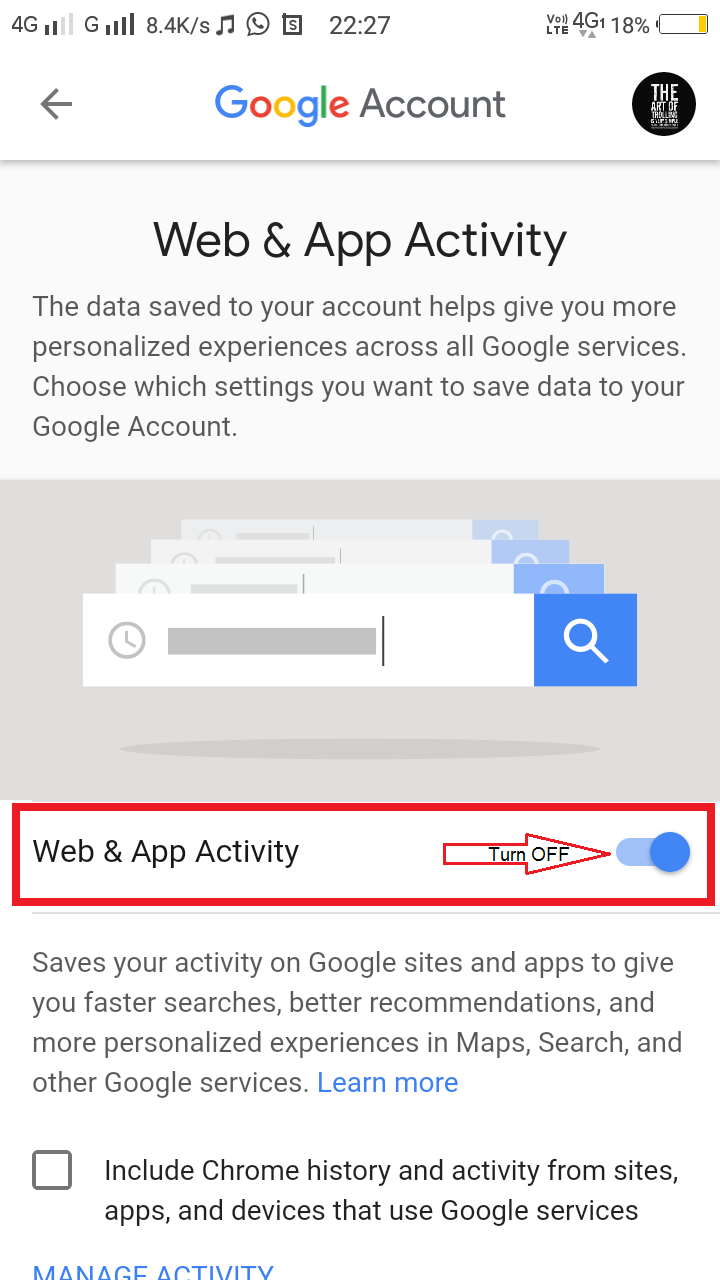
- Click on Web & App Activity.

- Toggle Web & App Activity off.


Read Also : How to Download Videos From YouTube ?
To Turn Off Location History :
- Go to the Settings.
- Click on Google tab.
- Click on Google Account tab.
- Click on Data & Personalisation tab ( same as above ).
- Toggle the Location History Off.


in iPhones and Computers :
- Click on This Link and Sign in.
- Toggle Web Activity Off.

- Toggle Location History Off.


- Open Google in your web browser and Sign in.
- Click on the Profile Picture ( Top Right corner ).
- Click on Google Account button.
- Click on Personal info & Privacy then My Activity.
- Click on Activity Control.
- Toggle Web Activity and Location History Off.
If You have any Question Don't forget to leave your Question in Comment Box.
At Last Thanks for Reading...
Sunday, August 12, 2018
How to Download Videos From YouTube ?
August 12, 2018
Did you like any Video on YouTube ? or Want to Download it, Don't be sad you can download your favorite videos from YouTube too.
 As we all know YouTube is a online videos streaming platform where you can watch your favorite videos, Most of the people have myth that we can't download videos from YouTube, We only can watch videos on YouTube, But in this post i am gonna tell you a TechTips about YouTube, How to Download Videos from YouTube ? This TechTips will help you to download your favorite videos from YouTube.
So Let's Start
Search your favorite video on YouTube.

Than your window look like this,
Add 'SS' in your link like this and hit the Enter key than your link should be like below link.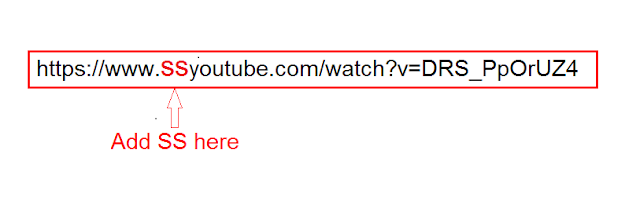
After pressing Enter key your window look like this
 Choose video quality according to your Jio plan (#Hahahaha), and Than click the Download Button.
if you like this Tips Don't be cheap to Share with others.

So Let's Start
- Search your favorite videos on YouTube
- Add 'SS' to URL of your video in youtube.
- Than select the quality of your Favorite video.
- click the Download button for Downloading.
Search your favorite video on YouTube.

Add 'SS' in your link like this and hit the Enter key than your link should be like below link.

After pressing Enter key your window look like this

if you like this Tips Don't be cheap to Share with others.
Thursday, July 19, 2018
These 10 Useful JavaScript Tips & Tricks That Every JavaScript Developer Should Know
July 19, 2018

1 - Use Semicolons at the end of the line for termination :
As every programmer know about the value of Semicolon in programming world, Semicolon is used at the end of the line for line termination, But if we did not use Semicolon in JavaScript its ok with it JavaScript will not going to give you an error if you forget to use Semicolon, But its a good practice to use Semicolon at the end of the line for line termination.
2 - Use = = = instead of = = :
Here = = = and = = are two different thing in JavaScript, You should aware about this difference in both operators, The = = operator performs an automatic type conversion if needed.
3 - Don't forgot to use var keyword to assigning a variable's value first time :
var keyword is use for creating a variable in JavaScript, you can also assign your variable at the creating time, you should avoid global variable in JavaScript.
var name = " Syntaxios " ;
document.write(name);
eval() also called function constructor, eval() always called script engine each time to convert a source code into a executable code, That's by you always try to avoid this function in JavaScript.
var function1 = new Function (functionCode);
var function2 = eval(functionCode);
5 - Avoid using with() :
The with() is used for insert a variable at the global scope, Thus, If you have another variable with same name the this could cause confusion and may be overwrite the value of your another variable.
6 - Create an object constructor :
function Person(firstName, lastName){
this.firstName = firstName;
this.lastName = lastName;
}
var Aman = new Person("Aman","Singh");
//Here we create an object Aman.
this.firstName = firstName;
this.lastName = lastName;
}
var Aman = new Person("Aman","Singh");
//Here we create an object Aman.
7 - Create a Self-Calling Function :
Self-Calling function also called Self-invoke anonymous function or immediately invoked function. The Self-Calling function always execute automatically when you create it.
(function(){
//Put your code here that you want to execute or call automatically
})();
(function(a,b){
var answer = a+b;
return answer;
})( 7, 5 )
//Put your code here that you want to execute or call automatically
})();
(function(a,b){
var answer = a+b;
return answer;
})( 7, 5 )
8 - Get a Random Number between specific range :
To generate a random number between the specified range you have to import the Math library, Math library have random function that is used to get a random number in a specified range, This code is useful when you want to generate some fake data for testing like age between min age than max age.
var age = Math.floor(Math.random()*(max - min + 1))+min;
9 - Get random item from an array :
This code will help you to get random number or item from an array.
var items = [1, 440, 'aman', 2, 530, 'singh', 3421 119, 'rajawat', 5, 765];
var random_items = items[Math.floor(Math.random()* items.length)];
10 - Generate an array of numbers zero to max :
This code will generate the array of numbers with numbers from zero to max,<
var number_array = [];
var max = 100; // maximum number upto 100, max = 100;
for ( var i=1; number_array.push(i++)< max);
//Numbers = [ 1, 2, 3, 4, 5, ......., 100 ];
var max = 100; // maximum number upto 100, max = 100;
for ( var i=1; number_array.push(i++)< max);
//Numbers = [ 1, 2, 3, 4, 5, ......., 100 ];
Subscribe to:
Posts (Atom)


